
Bookings
Bookings gives you your own scheduling page, a booking page like Calendly or cal.com, at an
address such as https://app.freesbe.net/b/dana. Anyone who opens it picks a length, a day and a
free time, then gets a calendar invite and a link to the call. Nobody needs a Freesbe account to book.
Everyone in a workspace can make their own booking pages. Guests can’t. Bookings come with
every paid plan. The page shows your workspace’s logo and name at the top, or its
initials when it has no logo. On Corporate and Enterprise you’ll also be able to use your own
domain, like meetme.acme.com/dana (coming soon).
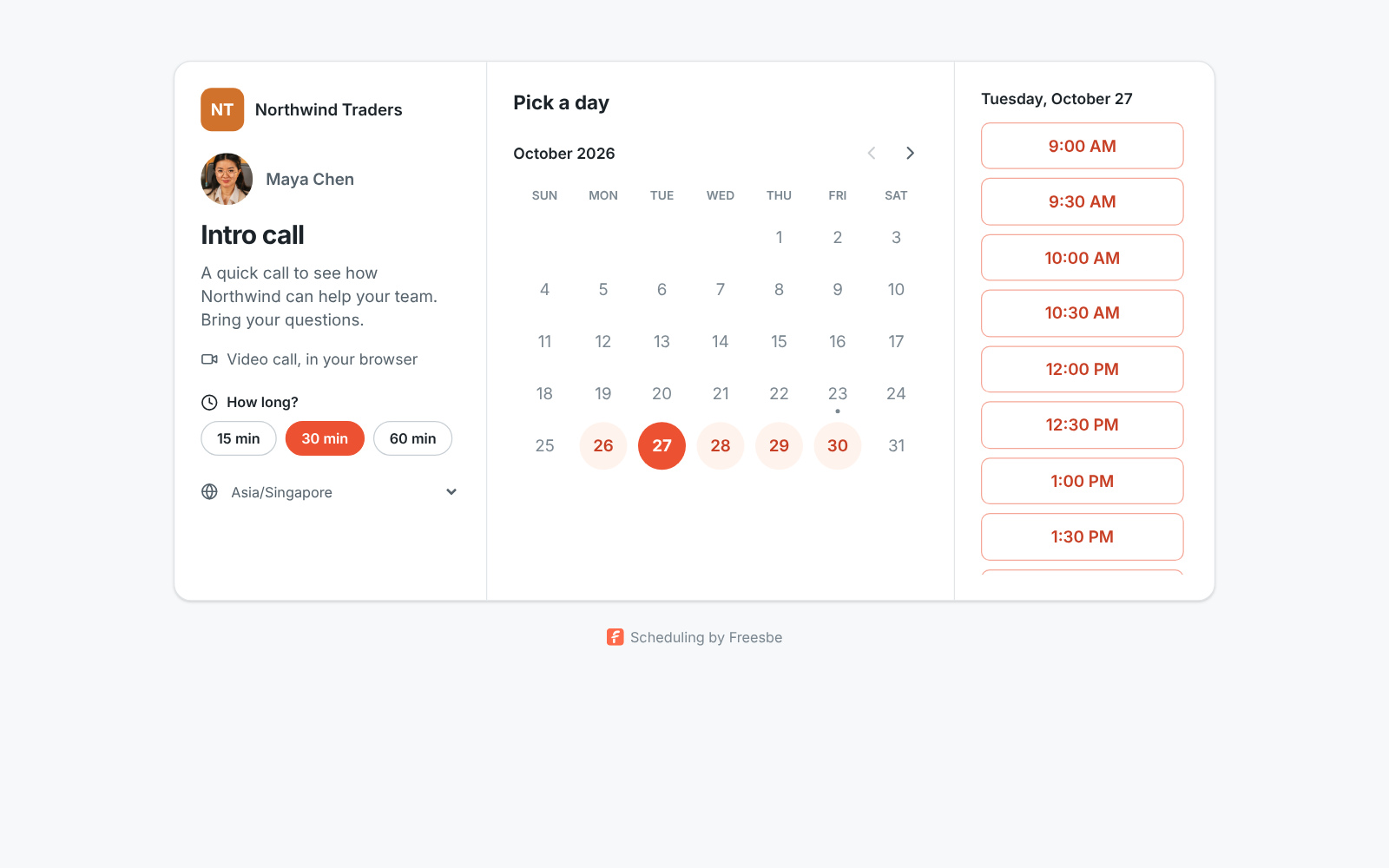
Make a booking page
Section titled “Make a booking page”- Open Meetings in the sidebar. Under Bookings, click Create booking page (or New booking page once you have one).
- Give it a Title, like Intro call or Product demo. It’s the heading on the page.
- Pick the Link. Freesbe suggests one from your name. Use 3 to 40 lowercase letters, digits and dashes; each name can only be used once across Freesbe.
- Add a Description if you like. It shows under the title.
- Under Meeting lengths, tick 15, 30 and 60 minutes, or just the ones you want to offer.
- Under Available hours, tick the days you take calls and set the hours for each. Pick the Time zone those hours are in; it starts as yours.
- Set the rest, or keep the defaults:
- Minimum notice: how soon someone can book. The default is 4 hours.
- Book up to: how far ahead people can book, from 7 to 90 days. The default is 60.
- Gap between meetings: free time kept before and after every meeting, so calls don’t run back to back.
- Show my profile photo: shows your picture on the page. Turn it off to show your initials.
- Verify the booker’s email and One upcoming booking per person are on for every new booking page. See Protect your page from fake bookings.
- Under Questions, add anything else you’d like to know before the call (see Ask questions).
- Click Create page.

Ask questions
Section titled “Ask questions”Name and email are always asked. Under Questions, add what else you’d like to know, like the company for a sales demo or a phone number for a call back. Click a button to add one:
- Company: the company they work for.
- Team size: they pick 1–10, 11–50, 51–200, 201–1,000 or more than 1,000 people.
- Phone number: a number to reach them on.
- Your own question: write the question, like Which products are you interested in? They answer in a box of their own.
Tick Required for questions they have to answer before they can book; the others are marked (optional) on the page. You can ask up to 6 questions, with company, team size and phone once each. Remove one with the × next to it.

The answers come with every booking:
- In your calendar invite and the meeting’s description in Meetings, one line per answer, like Company: Contoso. The person who booked sees their own answers in their invite too.
- In workflows that start When someone books time with you, as Their company, Their team size, Their phone number, What they wrote and All their answers. For example, post new demo requests to a channel with the company and team size.
- In the
booking.createdevent for webhooks and apps.
Changing the questions only changes what the page asks from then on. Bookings already made keep their answers.
Share it
Section titled “Share it”When the page is ready, Freesbe shows its link with a line for your email signature.

- Copy copies the link, for a message or your website.
- Copy for email signature copies a 📅 Book a meeting with me line that links to your page. Paste it into the signature settings of Gmail, Outlook or Apple Mail and it stays a link.
You can do both later from the list under Bookings, with the copy and envelope buttons next to each page.
On your company’s own domain
Section titled “On your company’s own domain”On the Corporate and Enterprise plans, an admin can move everyone’s booking pages to your
company’s own address, such as https://meetme.acme.com/dana. The old app.freesbe.net/b/
address keeps working. See Custom domains.

Pasted into Slack, Teams, iMessage or Freesbe, the link unfurls into a card with your name and your workspace’s logo:

Which times people see
Section titled “Which times people see”The page only offers times that are inside your available hours and free in all of these:
- Your Freesbe meetings, in every workspace you’re in: ones you organize and ones you’re invited to.
- Your connected calendar. Busy times from the Google, Microsoft or Zoho calendar you connected in Preferences are left out too. See Connect your calendar. Without a calendar, only your hours and Freesbe meetings count, so connect one if you keep meetings elsewhere.
- Your minimum notice, booking window and gap between meetings.
Starts are offered every 15 minutes for 15-minute calls and every half hour for longer ones. The page shows times in the visitor’s own time zone, and they can change it under the calendar.
Booking a call
Section titled “Booking a call”This is what the person booking sees:
- They pick a length, then a highlighted day, then a time.
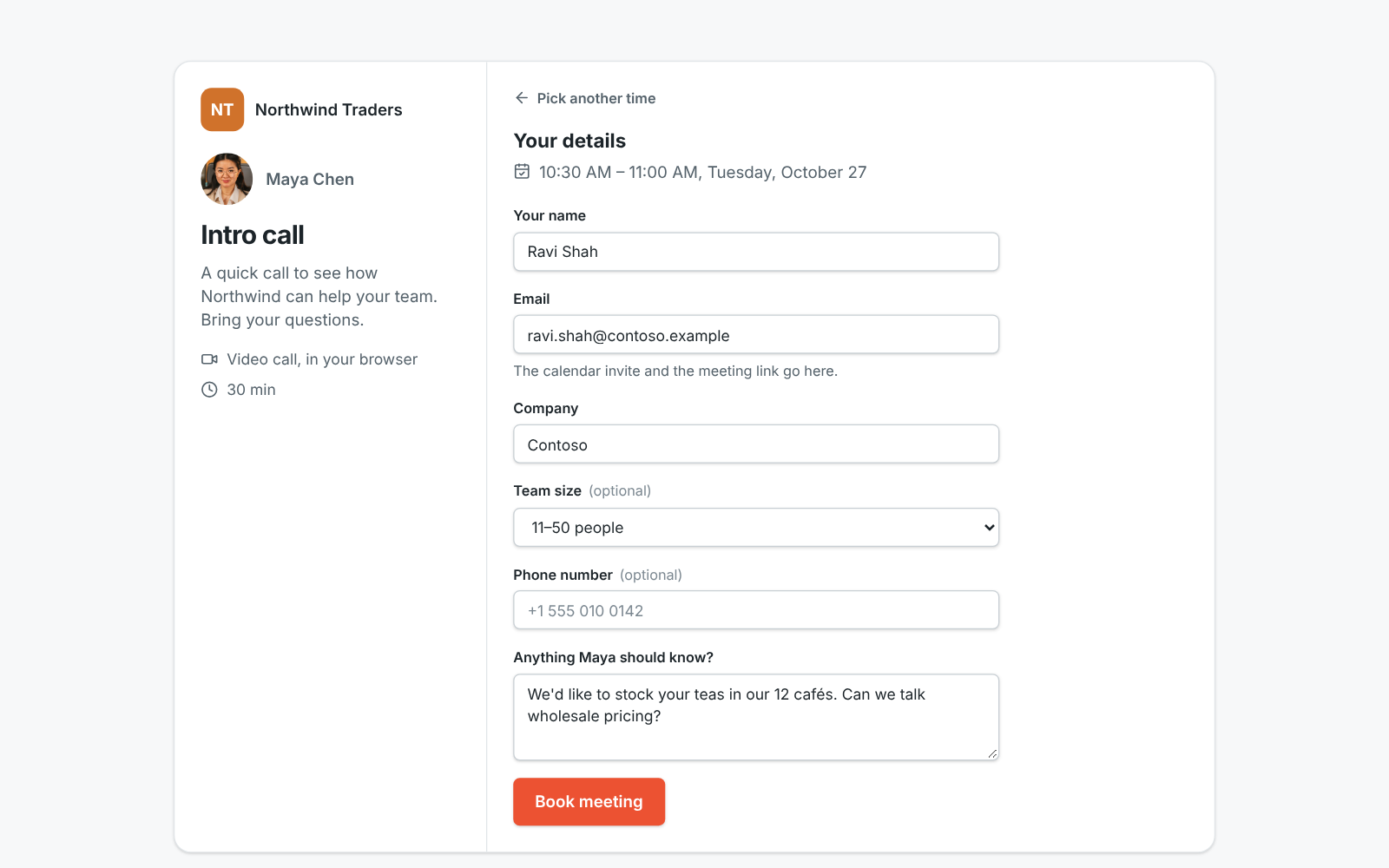
- They enter their name and email, answer your questions, and optionally write a note for you.
- They click Book meeting.
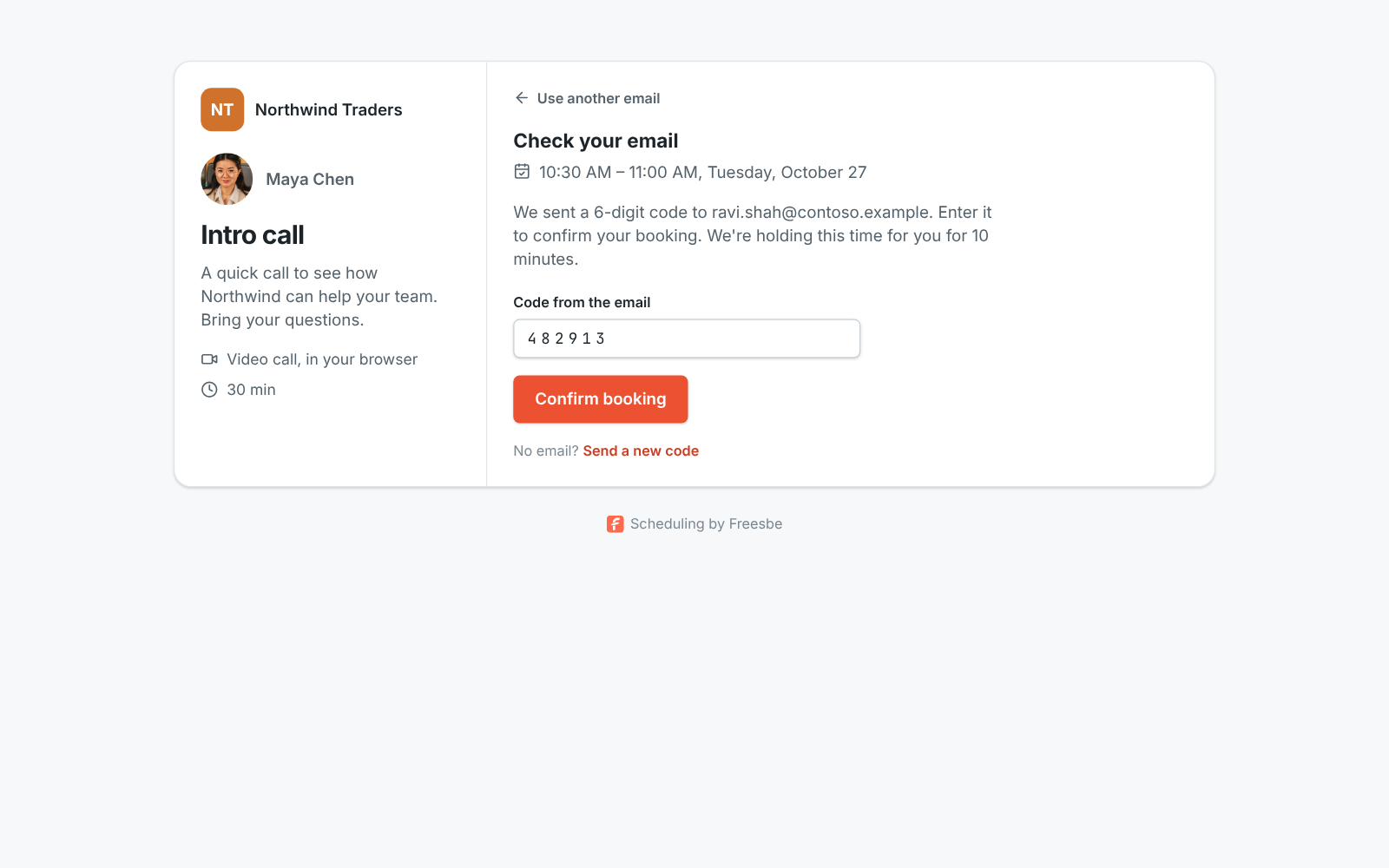
- With Verify the booker’s email on, we email them a 6-digit code. They type it in and click Confirm booking. The time is held for them for 10 minutes meanwhile, so nobody else takes it.
If someone else took that time a moment earlier, they’re asked to pick another one.

The booking becomes a normal meeting organized by you, titled like Intro call: Maya Chen and Ravi Shah:
- You get an email with a calendar invite saying who booked, with their answers and note.
- The person who booked gets a calendar invite with the times in their own time zone, their personal link that goes straight into the call without waiting in the lobby, and a Reschedule or cancel link.
- Both of you get a reminder about 10 minutes before the start.
It’s listed under Upcoming in Meetings, where you can edit, move or cancel it like any other meeting. Canceling it sends a cancellation to their calendar.
When they need another time
Section titled “When they need another time”People who booked can move or cancel the meeting themselves, without an account. The Reschedule or cancel link is in their invite email and on the You’re booked page. It opens their booking on your page. Their browser also remembers it: when they open your booking page again, they see You’re booked with their booking instead of the calendar, until the meeting is over or canceled.

-
Change time shows the same calendar, with the free times from the same page: your hours, notice, booking window and busy times all still apply. Their current time stays on offer. They pick a new time and click Confirm new time.

-
Cancel meeting asks them to confirm, with an optional note for you.

Either way, you get an email right away, and the meeting changes in Meetings and in both calendars:
- A move sends both of you an updated calendar invite. Yours says who moved it and the time it used to be.
- A cancellation sends both of you a cancellation. Yours includes their note, if they wrote one. The time becomes free on your page again.
They can change a booking until it starts. Moving it needs the page to still take bookings: if you paused or deleted it, they can still cancel, and the page asks them to contact you for another time. The Reschedule or cancel link only works for the person who booked, and stops working if you take them off the meeting.
Change, pause or delete a booking page
Section titled “Change, pause or delete a booking page”Use the Page options menu next to a page:
- Edit changes anything about it. If you change its link, the old address stops working.
- To pause a page without deleting it, Edit it and turn off Taking bookings. The page shows that it doesn’t work until you turn it back on.
- Delete removes the page. Meetings already booked through it stay on the calendar.
You can have up to 10 booking pages in each workspace, for example a short Quick question page and a longer Product demo page with different hours. A page also stops working if you leave the workspace or an admin deactivates you.
Protect your page from fake bookings
Section titled “Protect your page from fake bookings”Two switches in each booking page’s options keep people from booking with a made-up address, with someone else’s, or over and over. Both are on for every new booking page.

-
Verify the booker’s email: before the booking is made, we email the person booking a 6-digit code to type in. Nothing reaches your calendar until they do, and the time is held for them for 10 minutes. They can ask for a new code twice.
-
One upcoming booking per person: someone who already has an upcoming booking on the page can’t book a second one with the same address. Instead:
- With Verify the booker’s email on, they type the code and see their booking, with Change time and Cancel meeting.
- With it off, the page shows nothing about the booking, since anyone could type that address. It says they’re already booked, and we email them the link to their booking.

Once the meeting is over or canceled, they can book again.
People who come back to your page in the same browser see their booking straight away:

Booking pages made before these switches existed keep One upcoming booking per person on and Verify the booker’s email off until you turn it on.
Limits
Section titled “Limits”- Each page takes up to 30 bookings a day, so nobody can flood your calendar. Codes sent and not yet typed in count too.
- One address gets at most 6 codes an hour from booking pages, so nobody can flood someone’s inbox either.
- A booking can be changed up to 10 times, counting your edits. The booking shows how many changes are left. After that, the person who booked has to contact you to move it.
Answers come from the Freesbe guides and are written by AI, so check the linked guide before relying on one. Please don't include personal details such as emails or passwords.